
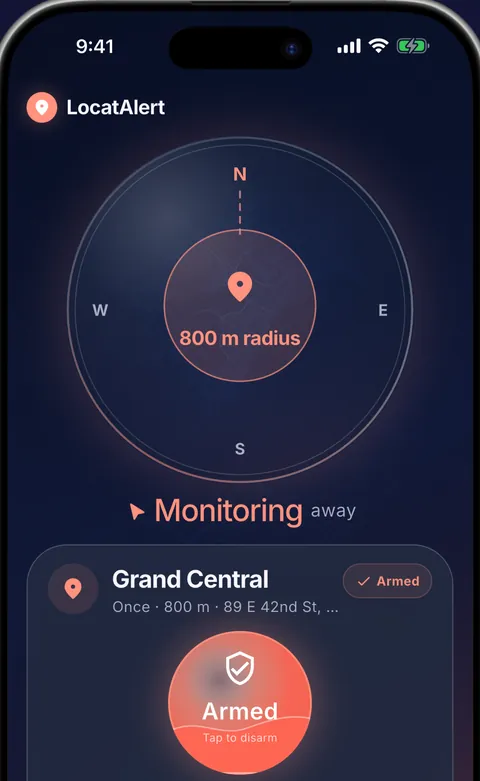
What is a GPS location alarm?
A GPS location alarm—also called a destination alarm or geofence alarm—uses a boundary around a place instead of a time on the clock. When your device enters or leaves that boundary, the app can trigger an alert.
Time alarm vs. location alarm
A time alarm cannot know whether traffic is slow, your train is delayed or your bus made better time than expected. A location alarm waits for the real journey to reach the place.
How LocatAlert works
1. Choose a destination
Search for an address, station, stop, business or any point on the map.
2. Set the radius
Choose how close you want to be when the alarm rings. A larger radius gives you more warning on faster routes.
3. Arm the alarm
With the required Android permissions enabled, LocatAlert can watch the destination zone while the app is closed and show the alarm over your lock screen.
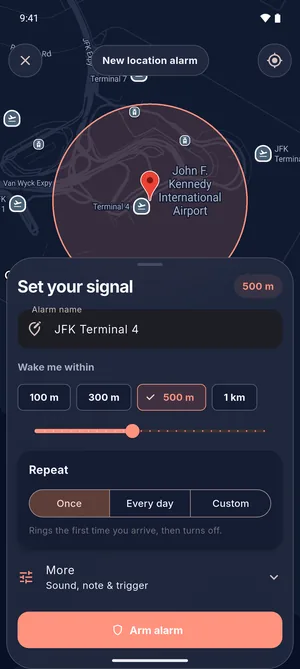 1–2 Place and distanceSearch or tap the map, then pick how close.
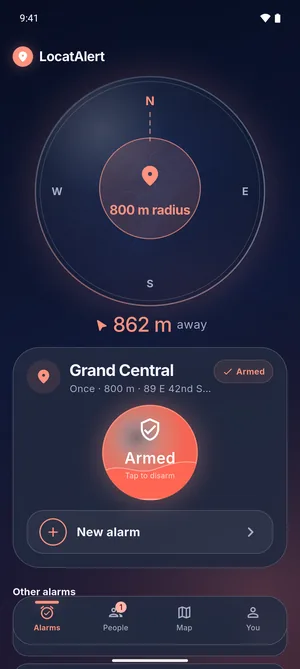 3 ArmedThe distance left, and one button to disarm.
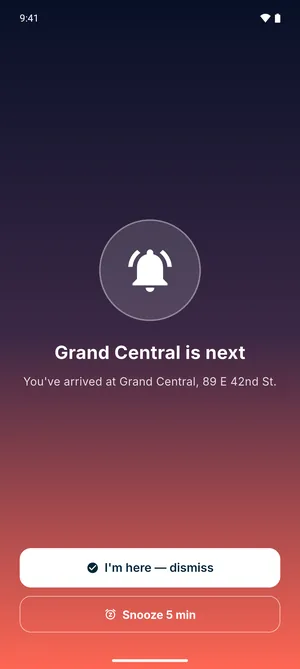 ArrivedA full-screen alarm with sound, over the lock screen.
Set an arrival alarm and test it
Before you rely on it for a real trip, set one up somewhere familiar and walk to it.
- Start a new alarm. In the Alarms tab, tap New alarm, or Set your first alarm on a fresh install.
- Pick the place. Type a station, landmark, business or full address into Search a place or address, or tap the map.
- Choose the distance. Under Wake me within, tap 100 m, 300 m, 500 m or 1 km, or drag the slider anywhere from 50 m to 5 km.
- Choose when it rings. Leave the schedule on Once, or pick Every day. Under More, the trigger is When I arrive. When I leave and Both are departure options on a paid plan.
- Tap Arm alarm. The first time, LocatAlert opens Make alarms work reliably and asks for location access, background location (Allow all the time), Show the alarm over your screen and Ignore battery optimization. Right after your first alarm is armed, it asks you to allow notifications. It won't mark an alarm armed if it can't ring.
- Test it. Choose a shop or corner a short walk away, arm it with a 100 m radius, lock your phone and walk there. It should ring as you cross into the circle. The exact spot varies with GPS signal, so leave a buffer on real trips.
If the alarm does not fire
- Location access: in Android settings, LocatAlert's location permission is Allow all the time, with precise location on.
- Notifications: allowed for LocatAlert, with Show the alarm over your screen on so it can appear over the lock screen.
- Battery: LocatAlert ignores battery optimization. If your phone has its own sleeping-apps or battery-saver list, keep LocatAlert off it.
- Signal: the phone needs a location fix to know you have arrived. Underground, in a tunnel or with location turned off, the alarm cannot fire until the phone finds its position again.
If a permission is turned off later, the alarm list says Permissions were turned off
and shows a Fix it button. Battery and lock-screen questions are answered in the LocatAlert FAQ.
Arrival, departure and repeating alarms
Use arrival alarms for stops, errands and destinations. Use departure alarms when leaving home, work or another area matters. One-time, daily and custom-day schedules help you reuse regular routes.
Privacy and reliability
Background location is used while an armed alarm needs to detect your arrival or departure. LocatAlert explains the needed permissions in context. Its friend features do not expose a continuous live-location feed, and location is not sold to advertisers or data brokers.
GPS accuracy and alarm timing can vary with signal, battery settings and permissions. The app includes a reliability setup so Android can keep armed alarms working in the background.
Set a GPS alarm free